Visitors expect a search box. Framer sites are fast static exports, which means there is no server waiting to run a query unless you add one. Framer site search today is a mix of native components, marketplace palettes, CMS-side indexes, and optional hosted search services.
This list ranks nine tools you can enable now: Framer’s built-in Search component, cmd+K overlays that auto-read your sitemap, CMS plugins that surface collection items on the live site, a branded find-on-page overlay for long docs, and developer paths through Algolia or Pagefind when traffic outgrows client-side indexes. Every pick has a working link, an identifiable creator, and a clear install path. Skip dead marketplace listings, client-only hacks with no preview, and tools that only filter one collection list when you need whole-site discovery.
Framer Site Search — Native fuzzy search from the Insert panel with three layout modes
by Framer
Framer Site Search is the default answer when someone asks whether the platform has search at all. Drag the Search component from the Insert panel, pick Quick Menu, Sidebar, or Fixed Top, scope paths if you only want /blog/ indexed, and publish. Indexing hooks into Framer’s build pipeline, so results feel instant on the live site with fuzzy matching and Motion-powered transitions. Weakness: it requires a Pro site plan or higher, and it indexes published pages rather than deep CMS body fields the way dedicated CMS plugins do. Pair it with a CMS plugin below when your blog posts live in collections with rich text bodies.
- Best for
- Marketing and blog sites on Pro plans that need whole-site page search without third-party code
Affiliate link — we may earn a commission at no extra cost to you.

CommandK Palette — Auto-indexes your live sitemap into a keyboard-driven cmd+K overlay
by Rishad
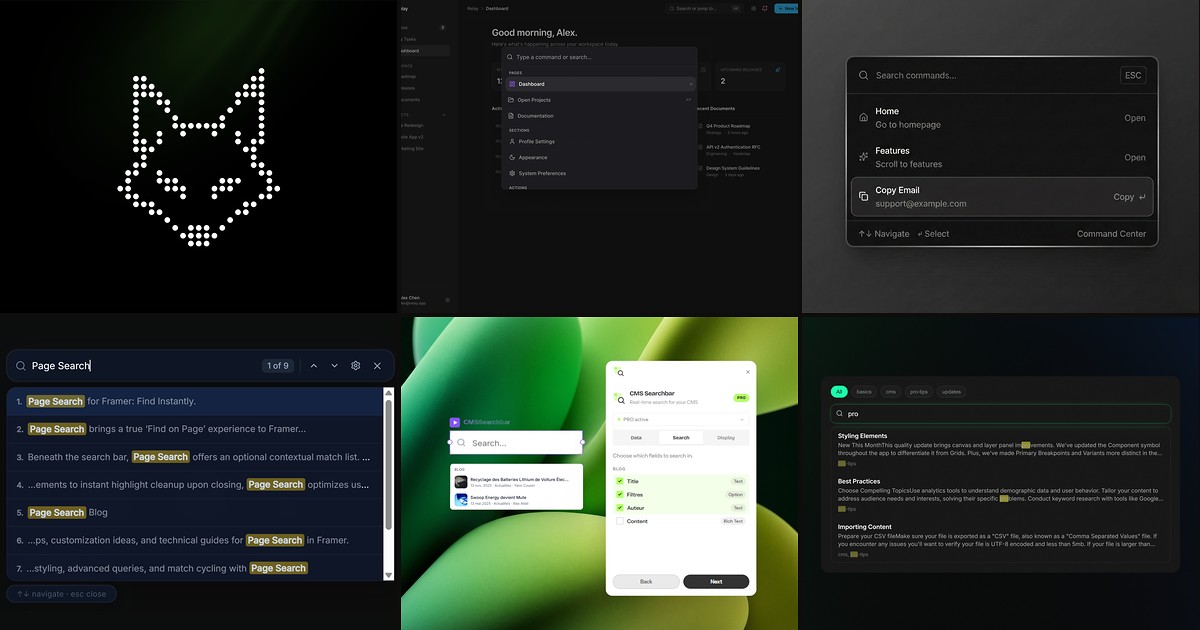
CommandK Palette is the fastest way to add cmd+K search when you do not want to wire every page manually. Drop the component once (header or nav is ideal), turn on Index Site, and it reads your published sitemap at runtime. Scoped paths let you limit results to /docs/ or /blog/ with custom group labels, while custom items still handle copy-to-clipboard actions and external links. Keyboard navigation, reduced-motion support, and mobile safe-area padding are built in with no backend. Weakness: it searches page URLs and titles from the sitemap, not full CMS article bodies, so pair it with CMS Searchbar when long-form content matters.
- Best for
- SaaS marketing sites and docs hubs that want app-style search without hand-maintaining a link list
Affiliate link — we may earn a commission at no extra cost to you.
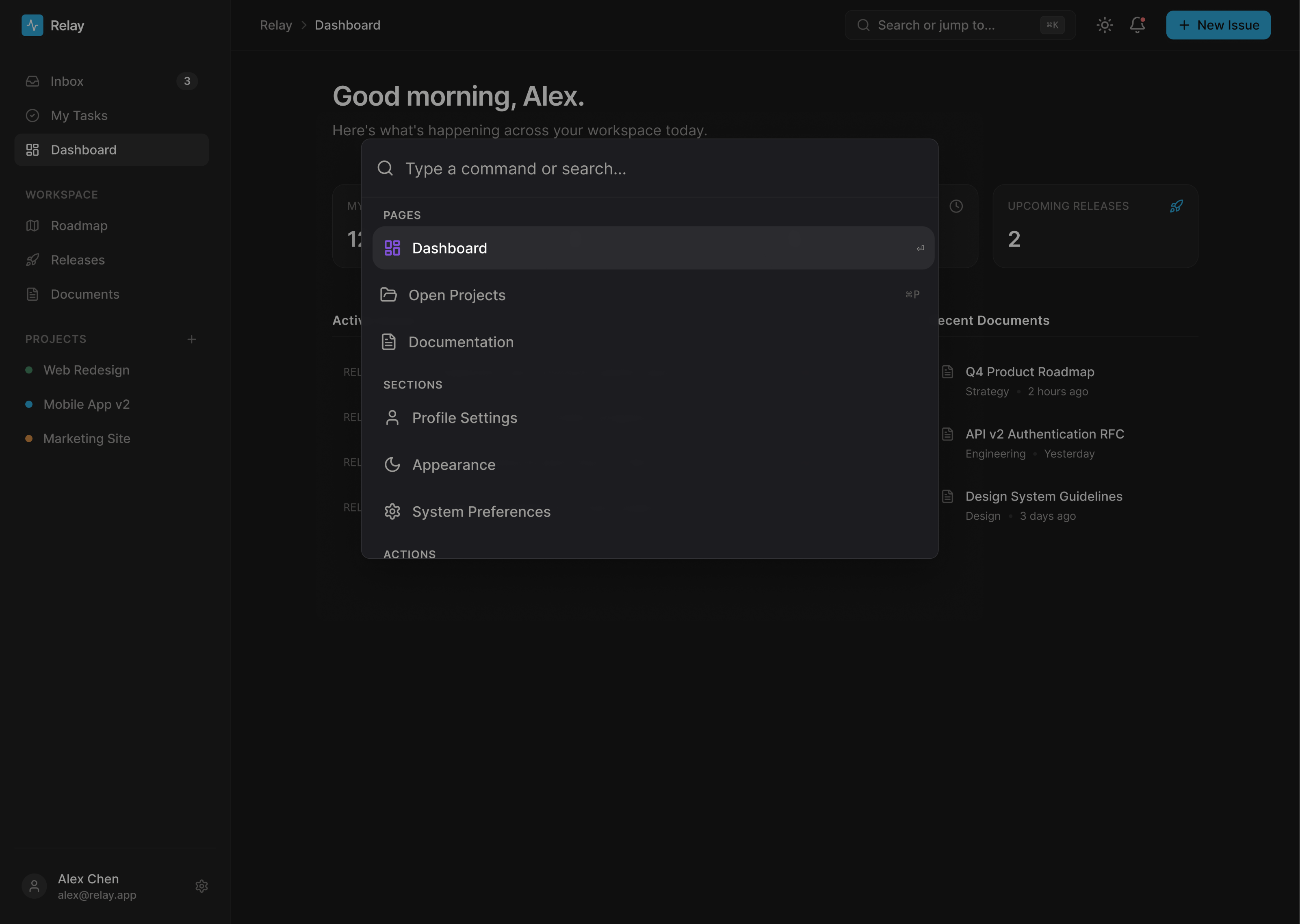
CommandK — Spotlight palette with prefix-priority matching and section scroll actions
by Ricky Roacho
CommandK trades auto-indexing for control. You define every command in the sidebar: scroll to a canvas section, open an internal page, or launch an external URL, each with icons, groups, and optional shortcut hints. Prefix-priority matching surfaces exact-start hits first, five visual presets cover glass and adaptive themes, and ARIA-aware keyboard navigation ships out of the box. Choose CommandK over CommandK Palette when your IA is small and intentional, or when auto-sitemap results would surface draft-adjacent URLs you never want searchable. Weakness: larger sites mean longer manual command lists that someone must maintain after every restructure.
- Best for
- Portfolios and product sites where you want curated commands, not automatic sitemap crawling
Affiliate link — we may earn a commission at no extra cost to you.
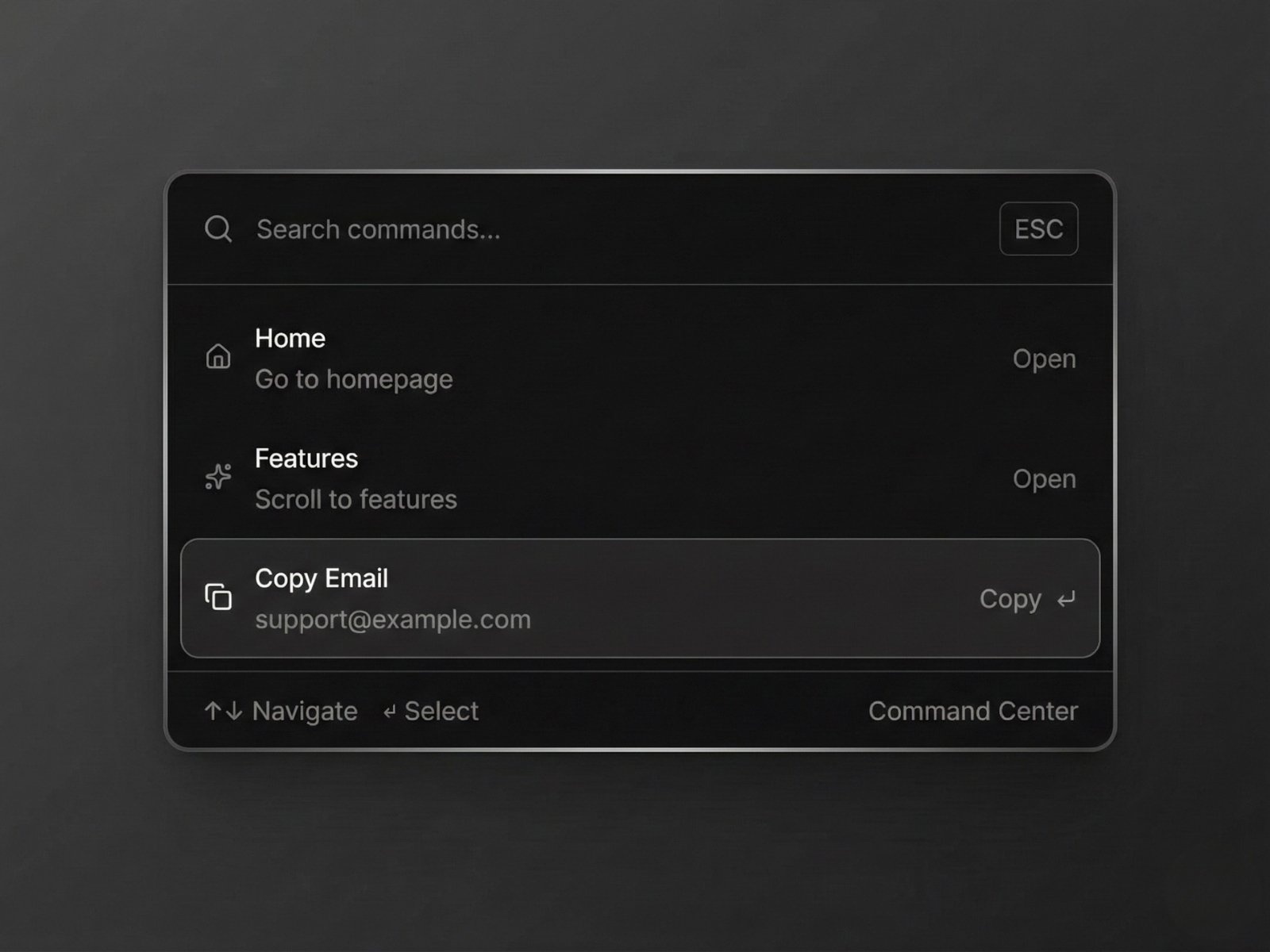
Command Center Pro — Linear-style palette with copy actions, anchors, and six theme presets
by Can Girgin
Command Center Pro sits between a search bar and a full command menu. Visitors open the modal with cmd+K or ctrl+K, filter a list of links and anchor targets, smooth-scroll to on-page sections, or copy emails and promo codes without leaving the overlay. Portal-based rendering keeps the modal above sticky navs and complex z-index stacks, six premium themes plus custom colors cover brand polish, and Lucide or uploaded icons label each row. It is manual setup like CommandK, but copy actions and anchor scrolling make it stronger for support docs and onboarding flows. Weakness: no automatic sitemap indexing, so stale commands stay searchable until you update the component.
- Best for
- Documentation and SaaS sites that need cmd+K navigation plus copy-to-clipboard utilities
Affiliate link — we may earn a commission at no extra cost to you.
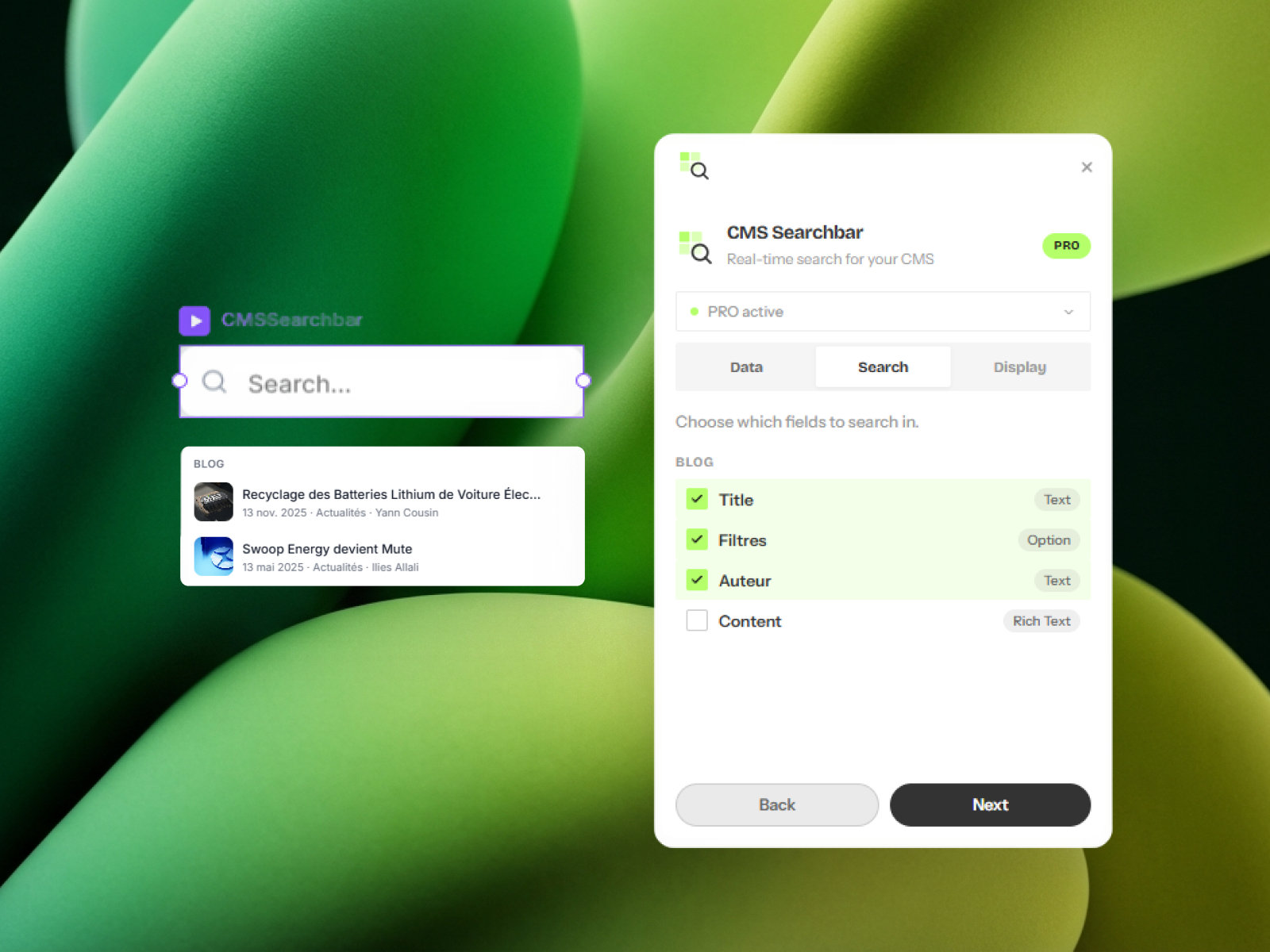
CMS Searchbar — Multi-collection CMS search with grouped results and keyboard navigation
by Ilies Allali
CMS Searchbar solves the gap native Site Search leaves open: searching CMS collection content from a styled input on any page. Pick collections, choose searchable fields (title, tags, body), configure result rows with images and metadata, then generate a native Framer component you style like any layer. The free tier covers one collection and three results, enough to validate on a client blog. Pro unlocks unlimited collections, full-text fields, fuzzy matching, and grouped results with counts. Weakness: you regenerate the component when CMS content changes materially, and it is collection-focused rather than a whole-site page index.
- Best for
- Resource libraries and blogs where CMS items are the primary thing visitors need to find
Affiliate link — we may earn a commission at no extra cost to you.
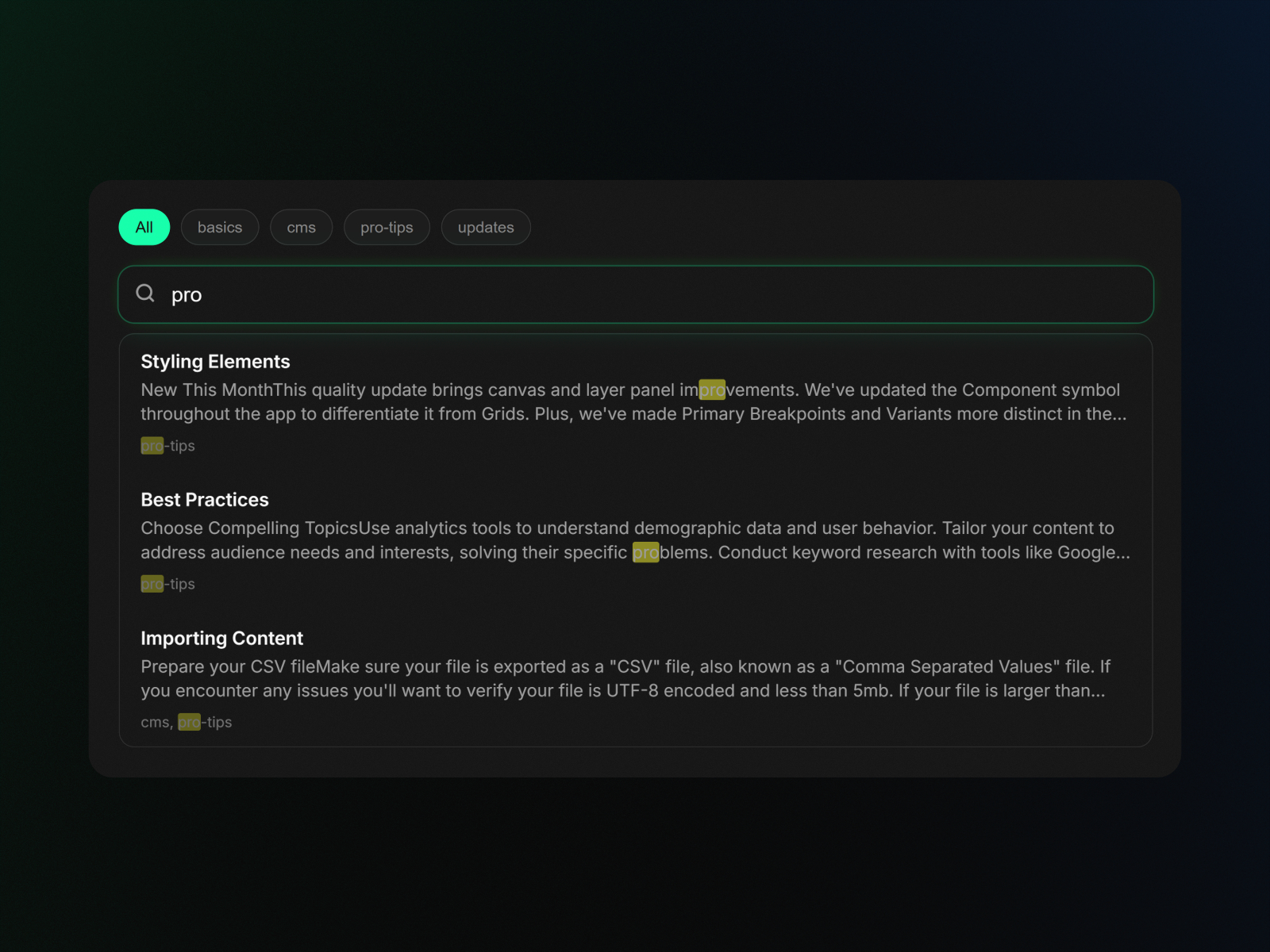
CMS Search — Fuse.js fuzzy search with a design-time JSON index on the component
by CodePerfect
CMS Search generates a lightweight JSON index at design time through the Framer Plugin API, then runs entirely in the browser at publish with zero API latency. Fuzzy matching handles typos, styling stays in Framer property controls, and Pro adds tag chips plus rich result previews. Click Generate Index whenever CMS content shifts. It is leaner than CMS Searchbar when you only query one collection and do not need cross-collection grouping. Weakness: manual re-indexing after CMS edits is easy to forget on busy editorial teams, and there is no built-in faceted filter stack for directory-style sites.
- Best for
- Single-collection blogs and changelogs that need typo-tolerant search without monthly fees
Affiliate link — we may earn a commission at no extra cost to you.
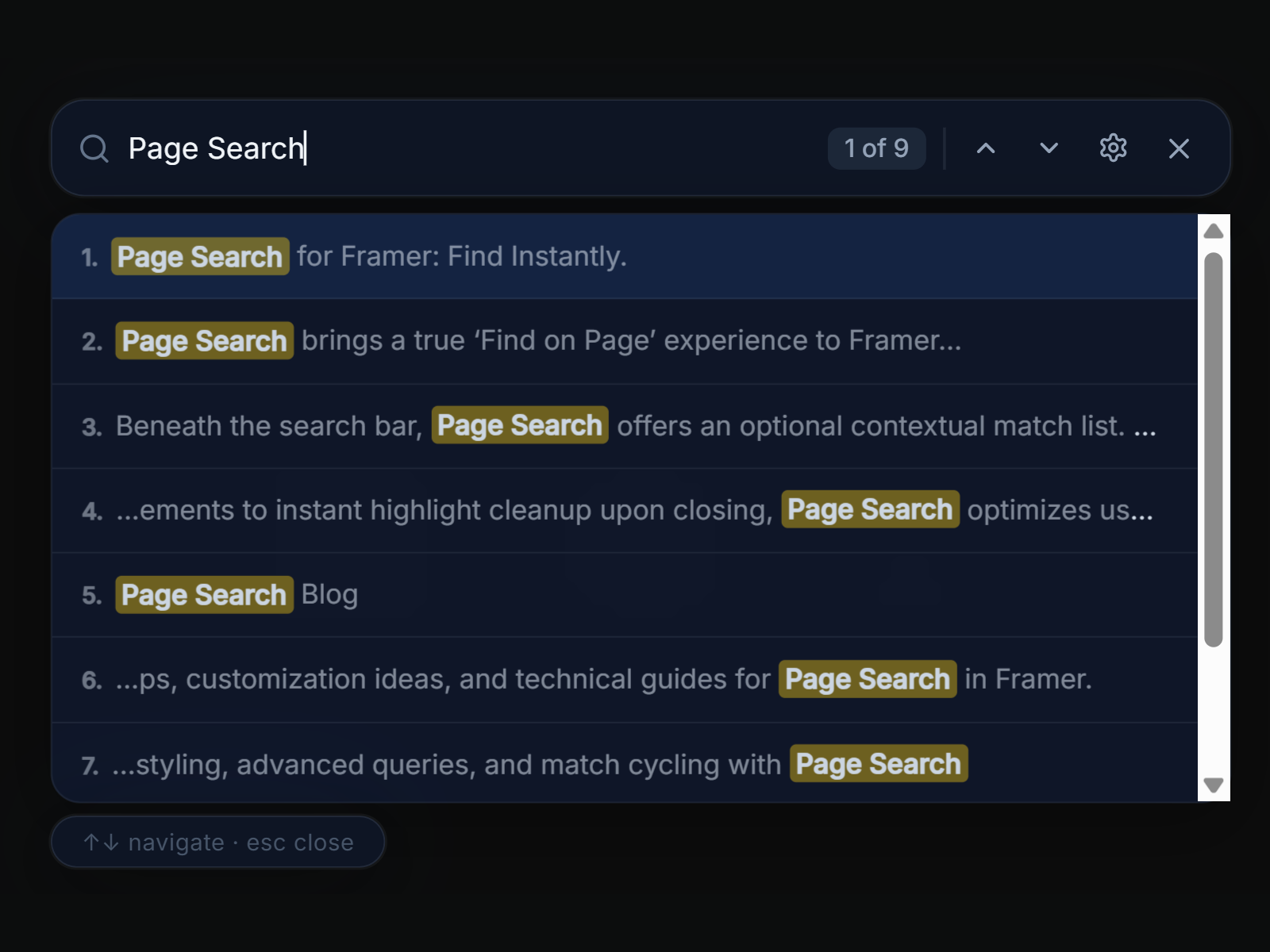
Page Search — Branded find-on-page overlay with highlight navigation and match lists
by Aidan Looker
Page Search is not whole-site search, and that is the point. It behaves like ctrl+F with a glassmorphism bar, live highlighting, previous and next match navigation, configurable highlight colors, and a scrollable context panel showing snippets. Drop it on dense docs, case studies, or pricing pages where global search would return the wrong URL entirely. Case-sensitive and pattern modes, debounced performance, and entry animations keep it polished on content-heavy templates. Weakness: it only searches the current page DOM, so skip it as your primary site search and use native Site Search or a palette component for cross-page discovery.
- Best for
- Long documentation pages and legal policies where visitors search within one URL, not across the site
Affiliate link — we may earn a commission at no extra cost to you.
Algolia InstantSearch — Hosted index with InstantSearch widgets wired through a Framer code component
by Algolia
When CMS plugins and native search hit relevance or scale limits, Algolia is the hosted upgrade path. Index pages and CMS records through Algolia’s API or sync pipeline, then build a Framer code component with InstantSearch.js widgets for the input, hits, and empty states. Typo tolerance, analytics, and synonym rules beat hand-rolled Fuse indexes on sites with thousands of entries. The tradeoff is real engineering time plus an Algolia bill once free tiers expire. Skip Algolia on five-page marketing sites; reach for it when stakeholders ask for search analytics, AI-assisted answers, or sub-50ms queries on massive catalogs.
- Best for
- Large documentation portals and marketplaces that outgrow client-side JSON indexes
Pagefind — Static index built after publish, searchable via custom code or modal UI
by Pagefind
Pagefind crawls your published HTML after build, writes a static index under /pagefind/, and serves queries entirely from the browser. Wrap it in a Framer code component using the Component UI (pagefind-modal, pagefind-searchbox) or the JavaScript API for a fully custom dropdown. It costs nothing beyond build-time compute and works on any static export, including Framer, when you can inject scripts through site custom code. Use data-pagefind-body attributes to limit indexing to article regions and avoid nav noise. Weakness: Framer does not run Pagefind automatically, so you need a post-publish hook or manual index step, and setup is developer-heavy compared with dragging native Search onto the canvas.
- Best for
- Teams comfortable with custom code who want free self-hosted search without Algolia pricing
Quick comparison
| Resource | Price | Type | Best for |
|---|---|---|---|
| Framer Site Search | Free with Pro plan | Built-in | Whole-site page search on Pro sites |
| CommandK Palette | 7 USD one-time | Component | Auto sitemap cmd+K overlay |
| CommandK | 12 USD one-time | Component | Curated command and section navigation |
| Command Center Pro | 10 USD one-time | Component | cmd+K with copy actions and anchors |
| CMS Searchbar | Free; Pro 15 EUR | Plugin | Multi-collection CMS search on site |
| CMS Search | Free; Pro 15 USD | Plugin | Fuzzy single-collection CMS search |
| Page Search | 9 USD one-time | Component | Find-on-page for long single URLs |
| Algolia InstantSearch | Free tier; paid usage | Search service | Hosted search at scale |
| Pagefind | Free | Search service | Self-hosted static index |
How to choose the right Framer site search tool
Decide what visitors are actually searching. Whole marketing sites and multi-page blogs need native Site Search or a cmd+K palette with sitemap indexing. CMS-heavy libraries need CMS Searchbar or CMS Search so article bodies appear in results. Long policy or docs pages on a single URL are Page Search territory, not global search.
Try built-in search before you buy. Framer Site Search on Pro plans covers fuzzy page discovery with scoped paths and three layout modes. Add a marketplace palette only when you need cmd+K UX, copy actions, or auto-sitemap indexing without maintaining a command list.
Free vs paid follows scope, not quality. CMS Search and CMS Searchbar ship meaningful free tiers for one collection. Command palettes cost 7 to 12 USD once and stay yours forever. Algolia and Pagefind shift cost to engineering time or usage bills when indexes grow past what client-side JSON can handle.
Developer paths are for scale. Algolia and Pagefind make sense when analytics, synonyms, or ten-thousand-row catalogs break CMS plugins. For most Framer marketing sites, native Search plus one CMS plugin beats a custom InstantSearch integration.
Our top pick for most Framer builders
Enable Framer Site Search first on Pro sites, then add CommandK Palette if visitors expect cmd+K. CMS-driven blogs should layer CMS Searchbar or CMS Search so collection content surfaces in results native page search misses. Reserve Algolia or Pagefind for documentation portals that outgrow marketplace plugins.
Browse free Framer templates on yoframer for CMS-ready starting points, or read our CMS search roundup when faceted filtering matters as much as the search bar itself. More resource lists live on the Resources hub.
Updated September 2026. We refresh this list when Framer ships search changes, marketplace tools reprice, or hosted integrations go stale.