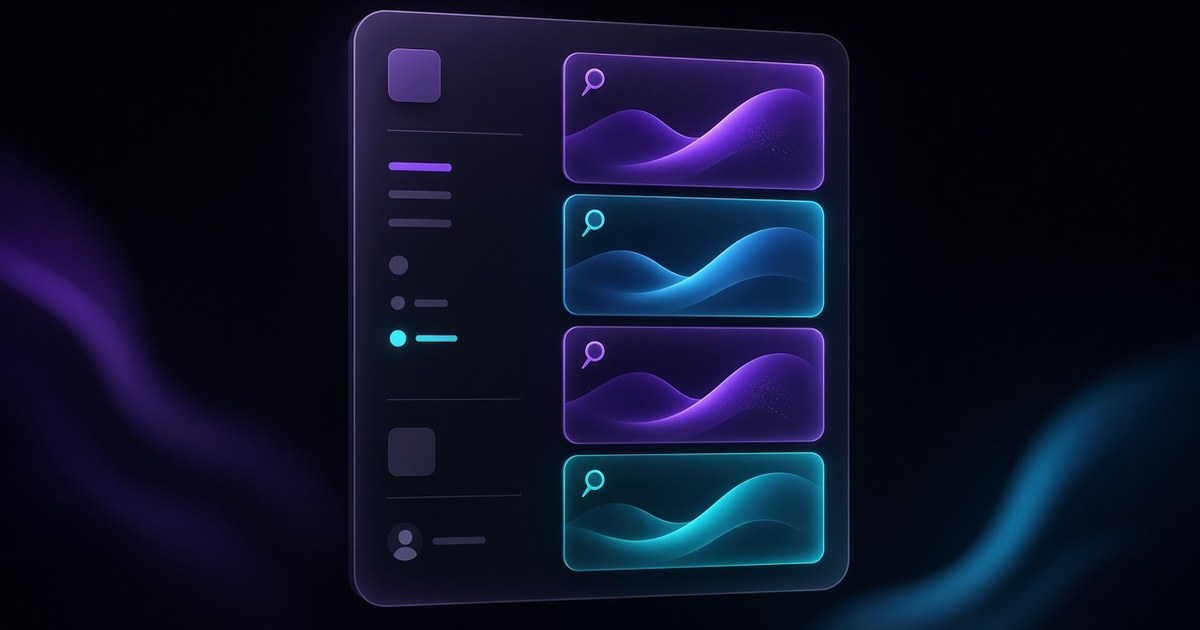
TL;DR — On July 16, 2026, Framer shipped Interactive Shaders for Liquid Gradient and Logo Gradient: both shaders now respond to the cursor with spring-based tracking, blending motion-style interaction with WebGL color fields. Select a shader, click
+on the newMouseproperty, then tune colors, motion, and intensity until the hero feels alive without stealing focus from copy.
Framer’s shader library already covered marks, holographic planes, and video-grade lens effects. This drop adds pointer reactivity to two of the most common hero choices: full-bleed liquid color and logo-forward gradients. This yoframer guide explains when mouse tracking earns its GPU cost, how Logo Gradient differs from Liquid Gradient on interaction, and which free Framer templates give you a credible hero to test before client sign-off.
Interactive shaders at a glance
| Shader | Visual role | What Mouse adds |
|---|---|---|
| Liquid Gradient | Animated color fields across a hero or section | Cursor pulls and shifts the field with spring-smoothed motion |
| Logo Gradient | Shifting gradient treatment on SVG or PNG marks | Interaction hugs the logo silhouette instead of treating the mark as flat fill |
| Shared controls | Colors, motion, intensity, and related shader knobs | One Mouse property workflow: click + while the shader layer is selected |
| Prior shader release | How July 16 extends it |
|---|---|
| Logo Shaders | Gradient mode on marks gains cursor-driven variation via Logo Gradient + Mouse |
| Shaders Insert panel | Same Insert → Shaders path; interaction lives in the inspector, not a separate effect stack |
| Holo Shader | Holo stays ambient gradient-class; Liquid Gradient targets fluid fields with optional pointer steering |
| Video Shaders | Video Shaders focus on footage; July 16 focuses on gradients that follow the cursor |
What’s new in interactive Liquid and Logo Gradient shaders
1. Spring-based cursor tracking
Framer describes smooth, spring-based tracking rather than raw one-to-one pointer mapping. That matters for brand sites: jittery WebGL reads cheap; a little spring eases motion when users sweep across a hero. Document approved intensity ranges so client editors do not chase maximum wobble.
2. Liquid Gradient as a reactive color field
Liquid Gradient creates animated color fields that move across the screen. With Mouse enabled, the field responds to where the visitor points, which is ideal for SaaS launches, studio portfolios, and event teasers where the first screen should feel hand-touched without custom JavaScript.
3. Logo Gradient on SVG and PNG marks
Logo Gradient adds shifting gradient effects to SVGs and PNGs. Mouse interaction lets the mark react to cursor position, which pairs naturally with Logo Shaders art direction: you keep the silhouette while motion lives inside the shader treatment.
4. Inspector workflow: the Mouse property
Framer’s setup path is deliberate: select the shader, click + on the Mouse property, then tune colors, motion, intensity, and related controls. No separate component override required for the baseline experience, which keeps marketing teams in familiar inspector territory.
5. Changelog in designer language
| Theme | Paraphrased capability | Practical takeaway |
|---|---|---|
| Shaders | Liquid Gradient and Logo Gradient | Pick field versus mark before you enable Mouse |
| Interaction | Spring-based cursor tracking | Preview slow passes and fast flicks on published preview |
| Setup | Mouse property with + affordance | Add interaction after base colors read on-brand |
| Inputs | SVG and PNG for Logo Gradient | Prefer vector marks when edges must stay crisp under motion |
| Art direction | Endless variation via color and intensity | Capture approved presets in component notes for handoff |
How mouse shaders fit the Framer shader library
Treat Interactive Shaders as the input layer on top of gradients you already insert from the Shaders library. Spectrum and Crystal pushed logo-class effects toward glass and light lines; July 16 adds pointer steering to Liquid Gradient and Logo Gradient specifically. If your team recently adopted Video Shaders, keep roles separate: footage plus lens on one hero, cursor-driven gradients on another, rarely both at full strength in the same viewport.
For editors onboarding this month, pair this article with the July Agents canvas capabilities roundup context only when you are also automating layout. Shaders remain a manual art-direction tool even when Agents can place them.
How to enable mouse interaction on Framer shaders
- Open a project with a hero band or logo lockup that already uses Liquid Gradient or Logo Gradient from Insert → Shaders.
- Select the shader layer and locate the
Mouseproperty in the inspector. - Click
+to add Mouse interaction (Framer’s July 16 wording). - Tune colors, motion, and intensity at moderate strength first, then publish preview on desktop.
- Move the cursor slowly, then quickly, across the hero; confirm headline contrast stays readable.
- Test mobile separately. If touch lacks hover, ship a calmer static gradient on narrow breakpoints.
New to Framer? Start free on Framer and remix one of the templates below so you are not inventing a launch layout from scratch.
Three workflow recipes to try this week
Liquid Gradient hero for a product launch
Marketing wants a full-bleed color field behind headline and CTA, with subtle cursor play that feels premium on desktop.
- Insert Liquid Gradient on the hero fill, establish base colors before enabling Mouse.
- Add the Mouse property and keep spring intensity low until type stays readable during slow cursor passes.
- Document approved intensity in layer notes so client editors do not max motion before sign-off.
Interactive mark on a teaser page
A launch brief centers the logo mark with gradient motion that reacts when investors move the cursor across the first screen.
- Start from SVG when possible; apply Logo Gradient plus Mouse on the mark layer.
- Keep supporting copy on a stable panel so shader motion does not compete with the tagline.
- Cross-check against /framer-updates/logo-shaders/ depth controls if you stack Contour or Bevel accents.
Portfolio hover band with a performance budget
A studio site wants interactive shader flair on the home hero but must stay smooth on agency laptops during pitch meetings.
- Use one interactive shader instance on the hero only; avoid duplicating Mouse-enabled layers in CMS rows.
- Preview with CPU throttling in devtools when possible; reduce intensity if fan noise spikes on a mid-tier MacBook.
- Ship a non-interactive gradient variant on mobile if touch preview feels broken or static.
Who benefits most
- Product marketers shipping launch teasers where the first screen must feel responsive without a dev sprint.
- Brand designers who already export SVG marks and want gradient motion tied to cursor exploration on desktop.
- Creative agencies standardizing Mouse presets across remix files so client teams inherit approved intensity ranges.
- Template authors bundling shader-forward heroes who need interaction that still reads when remixers swap colors.
Framer templates for interactive shader heroes
These free Framer templates already lean on bold heroes or mark-forward first screens. They are practical sandboxes for Liquid Gradient and Logo Gradient mouse tests.
 Live Preview
Revior · Free SaaS layout with a confident hero story
by OneFramer
Revior’s SaaS-forward hero gives you wide space behind headline and proof. Try Liquid Gradient with Mouse on the fill while keeping feature grids below calmer and CMS-ready.
- Best for
- Early-stage teams that need a credible launch surface while product UI is still in flux
 Live Preview
Voxera · Cinematic dark AI landing with high-contrast type
by Fawaz Ahamed
Voxera’s dark, cinematic hero pairs naturally with liquid color fields. Use moderate Mouse intensity so neon gradients enhance the mark instead of washing out the headline.
- Best for
- Teams pitching futuristic products that need moody gradients without rebuilding page scaffolding
 Live Preview
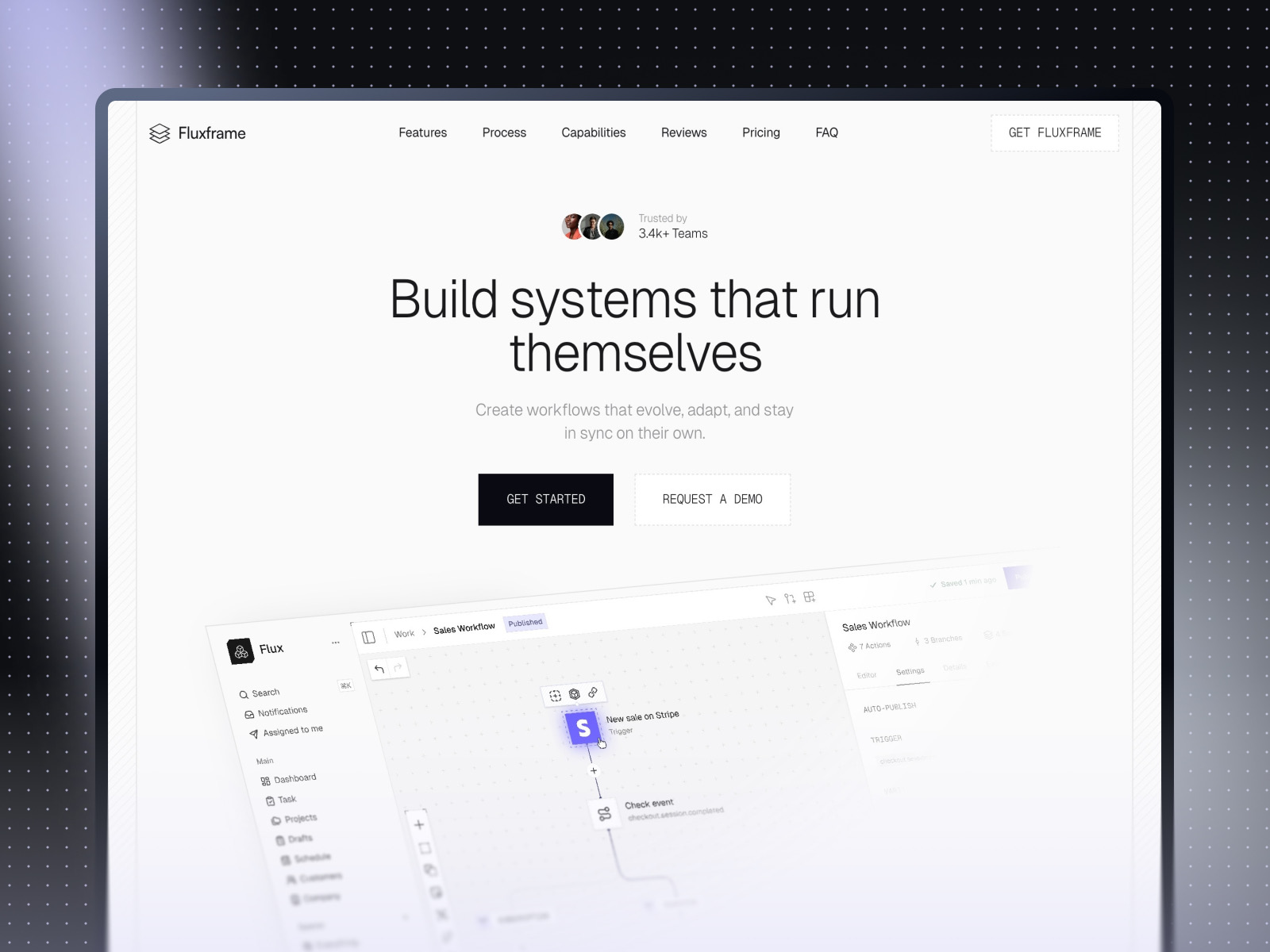
Fluxframe · Two-page SaaS landing built for motion
by Brice Deguigne
Fluxframe’s motion-first philosophy matches interactive shaders on the first screen. Enable Logo Gradient Mouse on a product mark, then let scroll interactions carry the rest of the story.
- Best for
- Product launches that lean on scroll choreography and animated hero bands
Hungry for more curated starting points? Browse Framer template roundups or open the full template directory.
Official Framer resources worth bookmarking
- Interactive Shaders release notes: canonical feature description from Framer (July 16, 2026).
- All Framer updates: adjacent releases including Video Shaders and Logo Shaders.
- Framer Help: hosting, performance, and publish checks when shader-heavy pages go live.
More reading on yoframer
- Framer updates hub: editorial breakdowns of major Framer releases.
- Shaders Insert panel guide: where gradient, logo, and media shaders live in the editor.
- Resources hub: components and kits that extend motion systems beyond shaders.
The bottom line
Interactive Shaders add cursor-driven, spring-smoothed motion to Liquid Gradient and Logo Gradient. Enable Mouse from the inspector, tune color and intensity with restraint, and treat pointer effects as desktop-forward hero tools with a credible mobile fallback.